How to email an incident report to the right person?
"Need email notifications to be viewable beyond just the form owner."- Google Docs Editors Community
Site managers need incident reports the day they're filed, but a Google Form only emails its owner, and the links in that email don't open for anyone else. So each report gets forwarded by hand, and while you're away, one can sit unread. Formesign sends each new report straight to the site manager, with the answers in the email, so they can act on it without opening your form. If reports go to different managers, the email can go to the address each report names.
Let's start. Create your form in Google Forms, then import it and follow the steps below.
1. Import your incident report
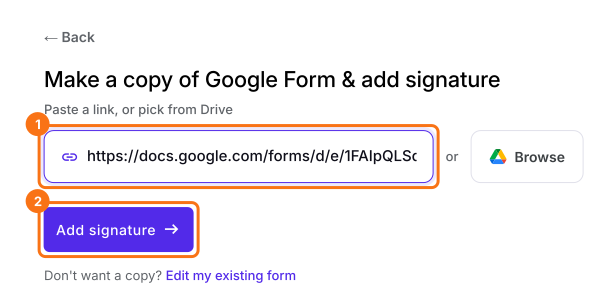
Publish your Google Form first or make one at form.new with your questions and click Publish. Click on Import your Google Form, click Import your Google Forms, paste its link (the form's address in your browser works) and click Add signature. Keep Simple signature and click Next. Choose the question it goes after and click Next. On Your signing link is ready, click Edit form.
2. Open the column's menu
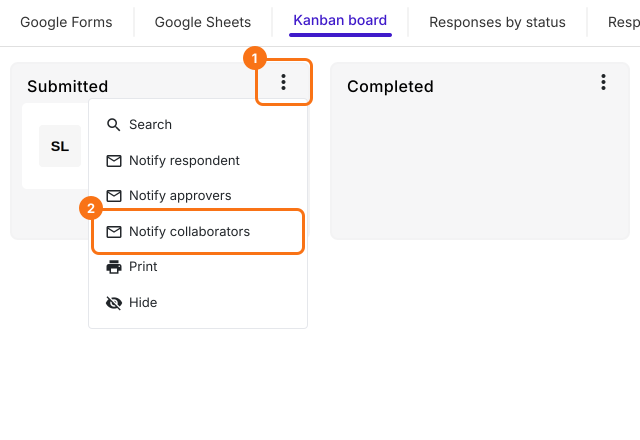
Click RESPONSES, then Kanban board. New reports land in the Submitted column, so click the three dots on it and choose Notify collaborators.
3. Choose who gets it
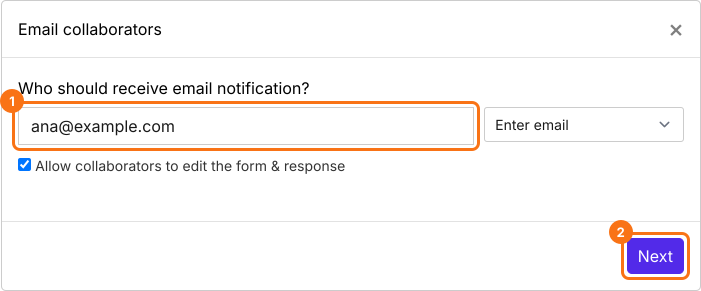
Under Who should receive email notification?, type the site manager's email and click Next. Allow collaborators to edit the form & response is ticked by default, so untick it if they should only read. If each report names its own manager, change Enter email to Select field and pick that question.
4. Write the email
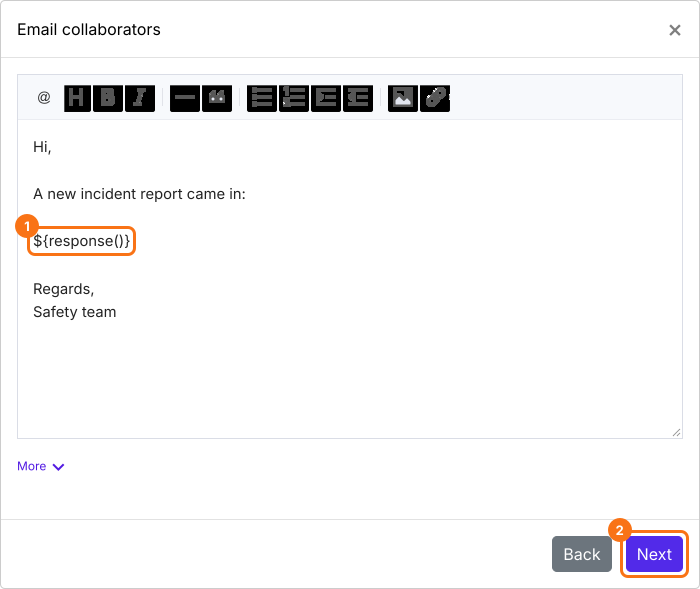
The subject comes filled in, so click Next. In the message, keep ${response()}, which puts the report's answers in the email. The rest starts as Thanks for your response, so change it to suit your site manager and click Next. If Test email notification is displayed, submit a test report and click YES.
5. The site manager gets each report
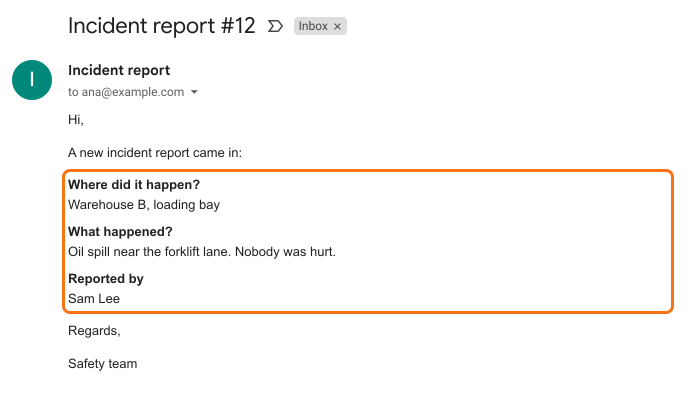
Click SHARE and send the link to whoever reports incidents. When the next report comes in, they get the answers in their email and can read them without opening your form.
Summary
When someone other than the form's owner has to act on each response, Google's notification doesn't reach them and forwarding by hand misses some. With Formesign, each new response is emailed with its answers to the person who acts on it, whether or not you're around. Create your form in Google Forms, then import it and complete the steps above.
Last updated: