How to share signed forms with an auditor?
"I need to see the full waiver with member signatures"- Google Docs Editors Community
When a safety auditor asks to see every signed member waiver, a Google Sheet of responses only gives them names, with no signature to point to. Copying and sending each file takes hours, and the next audit means doing it again. Formesign saves each signed waiver as a PDF in one Google Drive folder. You share the folder with your auditor once, and waivers signed later land in the same folder.
Let's start. Create your form in Google Forms, then import it and follow the steps below.
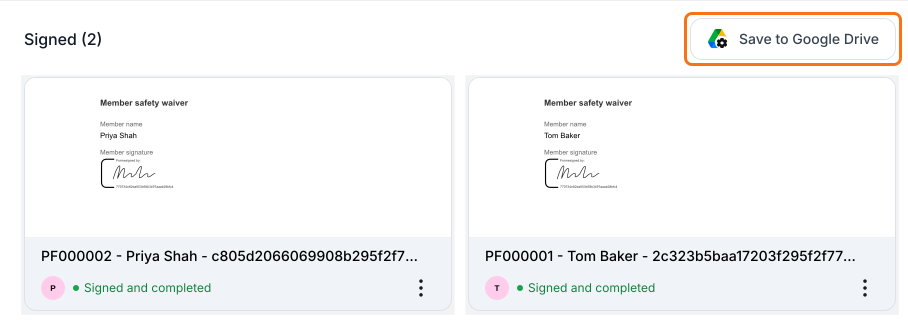
1. Open your signed waivers
- Publish your Google Form first or make one at form.new with a member's name question and click Publish.
- Click on Import your Google Form, click Import your Google Forms, paste its link (the form's address in your browser works) and click Add signature. Keep Simple signature and click Next.
- Choose the question it goes after and click Next.
- On Your signing link is ready, click Edit form.
- Each signed waiver is a card in the SIGNED PDF tab, so click Save to Google Drive there.
2. Connect a Google Drive folder
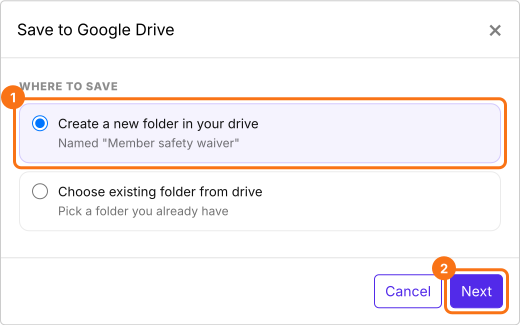
Choose Create a new folder in your drive and click Next. It takes the name of your form's file in Drive.
3. Save each signed waiver
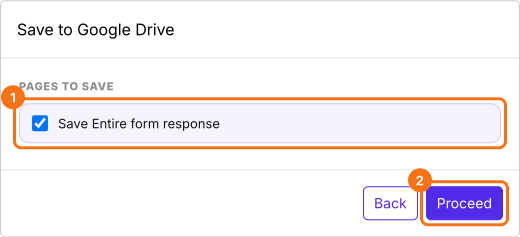
Keep Save Entire form response ticked, click Proceed and allow access when Google asks. Click SHARE and send the link to your members. New waivers now save to the folder, so download earlier ones from SIGNED PDF and add them.
4. Share the folder with your auditor
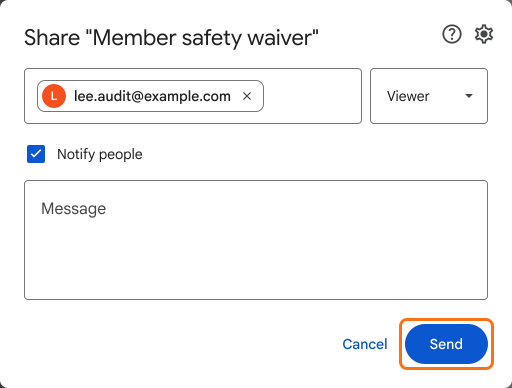
In Google Drive, right-click that folder and click Share. Type your auditor's email, choose Viewer and click Send.
5. Your auditor opens the full waiver
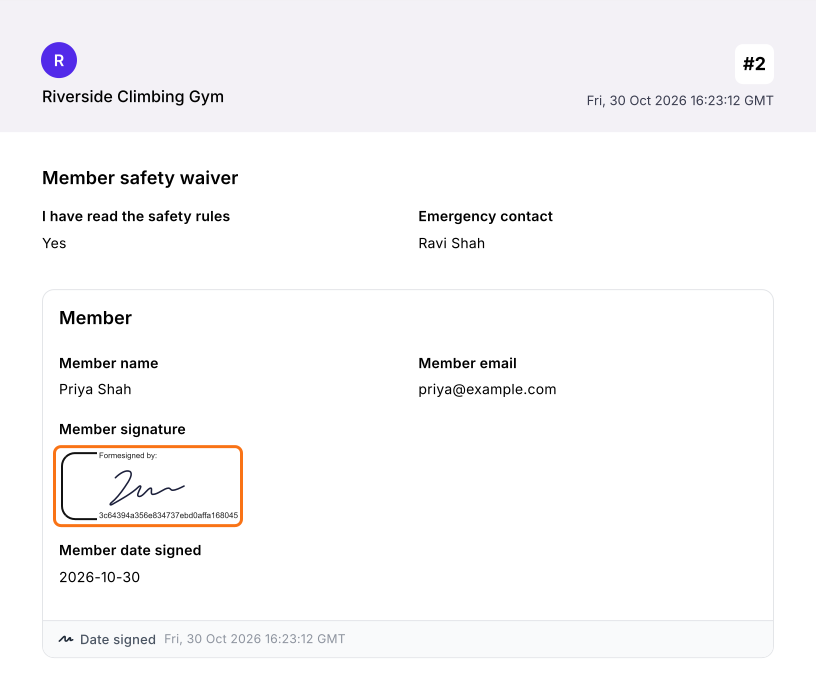
Your auditor opens the folder from Google's email and clicks any signed PDF. They see the full waiver with the member's signature and new ones land in the same folder.
Summary
When someone outside your team needs to see the signed forms themselves, a list of names isn't proof and copying files by hand has to be redone for every audit. With Formesign, each signed form is saved as a PDF to one Google Drive folder, which you share once. Create your form in Google Forms, then import it and complete the steps above. If you have any questions, write to support.
Last updated: