How to make an inspection form with photos and a signature?
"I have a daily inspection check sheet which i will attach a QR code"- Google Docs Editors Community
A daily check sheet in Google Forms, with a QR code on the equipment, works until a check fails and you need a photo of the fault and a name against it. Photos sent by text get lost and have to be matched up later, and a ticked box doesn't show who signed. With Formesign, the worker scans the code, adds photos and signs with a finger in the same form, and the photos are kept with that signed check.
Let's start. Create your form in Google Forms, then import it and follow the steps below.
1. Import your check sheet
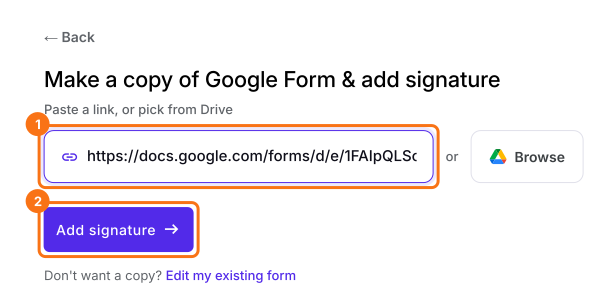
Publish your Google Form first or make one at form.new with a name question and click Publish. Click on Import your Google Form, click Import your Google Forms, paste its link (the form's address in your browser works) and click Add signature. Keep Simple signature, so workers sign without a Google sign-in and click Next. Choose the question it goes after and click Next. On Your signing link is ready, click Edit form.
2. Add a question for photos
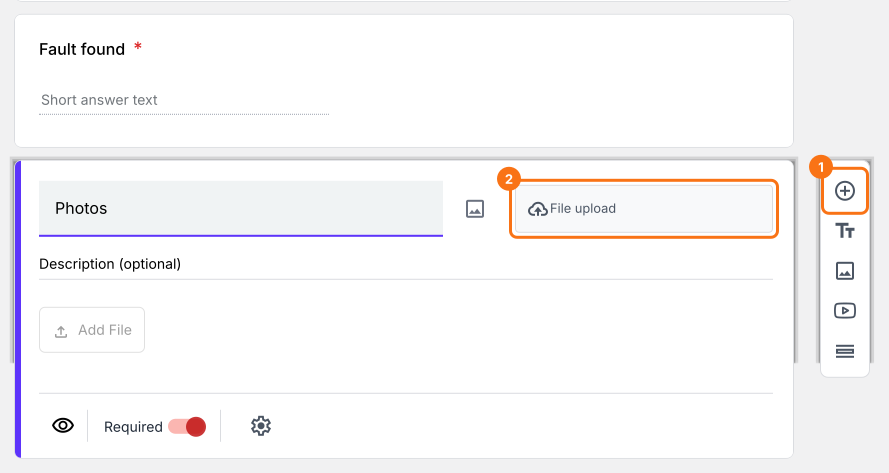
Click a question, then the + button on the toolbar, name the question Photos and choose File upload.
3. Put the QR code on the equipment
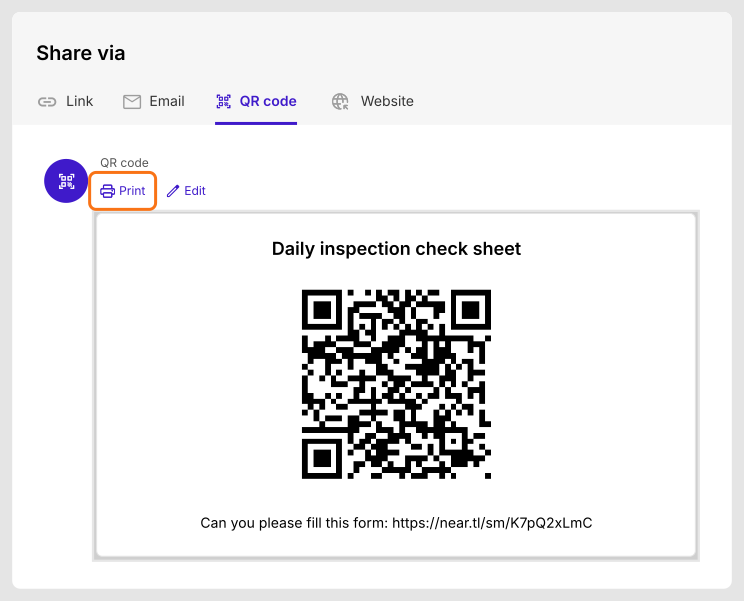
Open the SHARE tab, choose QR code and click Print. Stick it on the equipment, so whoever does the check can scan it.
4. Add photos and sign on the spot
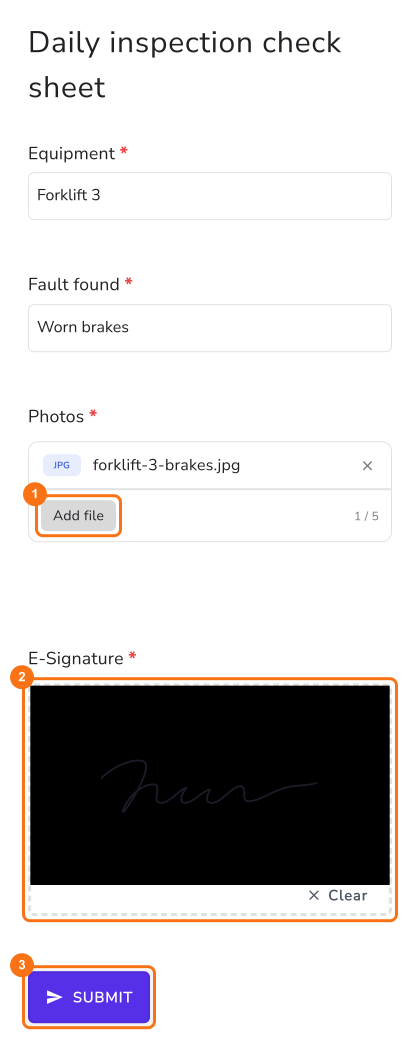
The worker scans the code, fills in the sheet and taps Add file to add a photo. They sign with a finger and tap SUBMIT.
5. Find the photos with the sheet
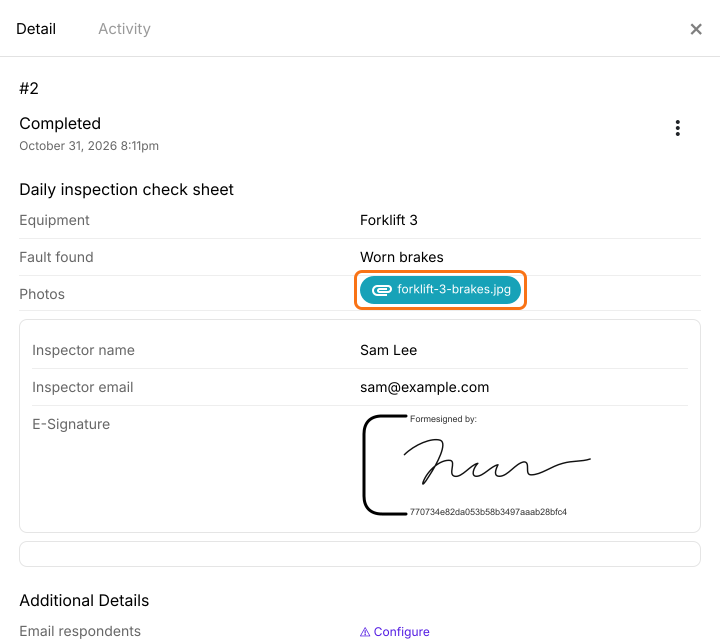
Each check is a card in the SIGNED PDF tab. Click its three dots and choose Details to read the answers and open the photos.
Summary
When a check needs evidence, photos sent separately get lost and a ticked box doesn't show who signed off. With Formesign, the person doing the check opens the form from a QR code, adds photos and signs and the photos stay with the signed record. Create your form in Google Forms, then import it and complete the steps above.
Last updated: