表單回應沒有記錄到 Google Forms 中,該如何修正?
"表單回應沒有被記錄,但填答者都有回應收據。"- Google Docs Editors Community
填答者手上都有回應收據,但您的 Google Forms 表單卻顯示沒有任何回應,Google 論壇上已有 37 人問過這怎麼可能。當您用 Formfacade 把表單放在網站上時,通常是一個設定造成的。每個答案都會記錄在 Formfacade,但只有在開啟 Submit to Google Forms 時,才會送到您的 Google Forms 表單和與它連結的試算表。在發現這點之前,您可能會請大家重新填寫表單,或逐一手動確認。要解決這個問題,請在 Responses 下開啟 Submit to Google Forms,並從 Kanban board 傳送遺漏的回應。
1. 開啟 Submit to Google Forms
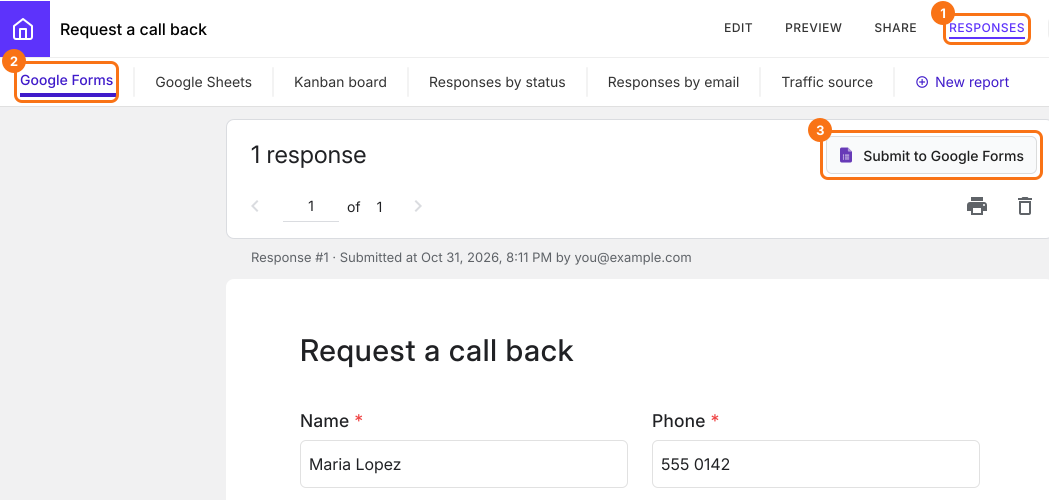
在 Formfacade 開啟您的表單,點選 RESPONSES,再點選 Google Forms。來自您頁面的每個回應都在這裡,即使它沒有送到您的 Google Forms 表單。如果您看到 Submit to Google Forms 按鈕,表示來自頁面的回應沒有傳送到您的 Google Forms 表單。點選它,再點選 Proceed。現在每個新回應也會送到您的 Google Forms 表單。
2. 開啟接收您回應的 Google Forms 表單
按鈕現在顯示 View in Google Forms。點選它即可開啟接收回應的表單。如果您匯入了表單,這就是 Formfacade 的表單副本。您的回應會送到副本,原始表單則維持空白。要使用試算表,請將它連結到這個副本。

3. 找出沒有送出的回應
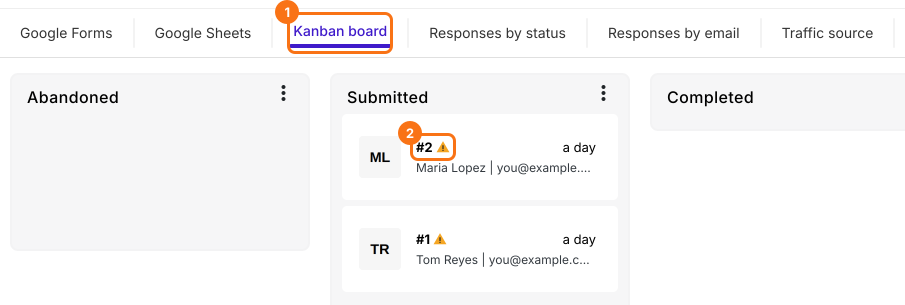
Proceed 只涵蓋新的回應。點選 Kanban board。沒有進入您 Google Forms 表單的回應,編號旁會有警告標誌。如果之後 Google Forms 拒絕某個回應,例如表單已關閉或必填問題沒有答案,您會看到同樣的標誌,並收到一封寫著 Google Forms submit failed 的電子郵件。
4. 將回應傳送到您的 Google Forms 表單
點選該回應。在 Additional Details 下,Google Forms 那一列顯示 Not submitted。點選旁邊的圖示。當回應送到您的 Google Forms 表單後,該列會顯示 Submitted。2025 年 3 月 21 日之前的回應不會顯示這個標誌或圖示。

5. 檢查您的 Google Forms 表單是否要求填答者登入
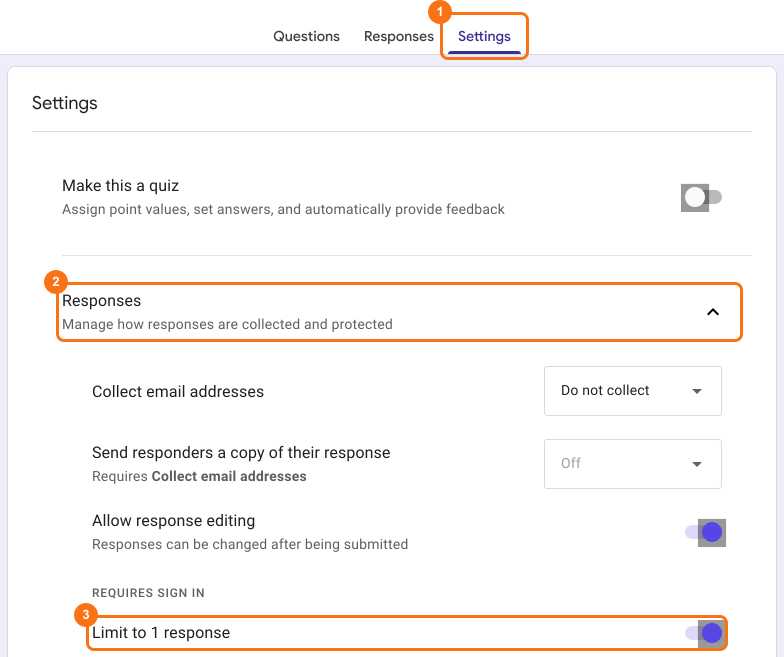
如果您的 Google Forms 表單要求填答者登入,例如開啟了 Limit to 1 response,Formfacade 就無法替他們傳送回應。他們必須在 Google Forms 自己的頁面提交。請在您的 Google Forms 表單中關閉該設定。查看做法。
摘要
如果您是根據 Google Forms 表單的回應來工作,空白的表單看起來就像答案遺失了,而請大家重新填寫會耗費您的時間。使用 Formfacade,每個回應都會記錄在 Formfacade。開啟 Submit to Google Forms,讓新回應送到您的 Google Forms 表單,並從 Kanban board 傳送遺漏的回應。如有任何問題,請寫信給支援團隊。
最後更新: